
It is important that the billing profile used for invoicing contains the correct information. Always check this first before adjusting the invoice. How to create or modify a billing profile can be found in the article ‘Add/Edit invoice profile': Click here.
Once the billing profile is correct, proceed with the steps below:
Step 1:
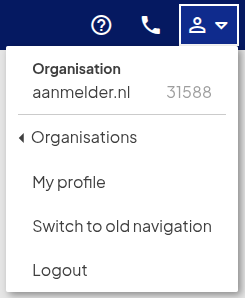
Go to the organisation dashboard via the ‘profile’ icon in the top right corner of the screen. Click on Organisation.
Step 2:
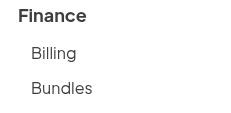
Click on Billing in the left-hand menu.
Step 3:
Click the pencil icon next to an invoice to select a different billing profile or add an invoice reference.
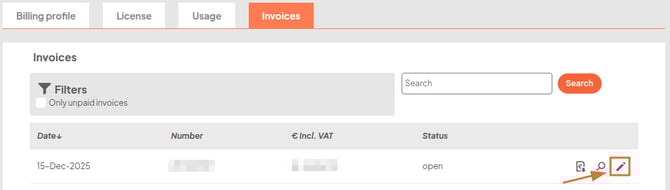
Note: An invoice can only be modified if it has the status “open”.
Step 4:
Select the correct billing profile and click Regenerate Invoice.
-4.png?width=670&height=286&name=image%20(1)-4.png)
Step 5:
Download the updated invoice by clicking the following icon:

Note: If the invoice is part of a pair (aanmelder.nl (AM) and DCS invoice), both invoices must be regenerated, even if you only want to modify one of them. The system automatically recognizes whether a linked invoice exists.