
Do you want your ticket prices to change automatically on a specific date? You can do this by creating different pricing scenarios, such as Early Bird, Regular and Late Fee. In this article, you'll learn how to configure these scenarios so the correct ticket price is automatically displayed in your registration form.
Set up an Early Bird ticket
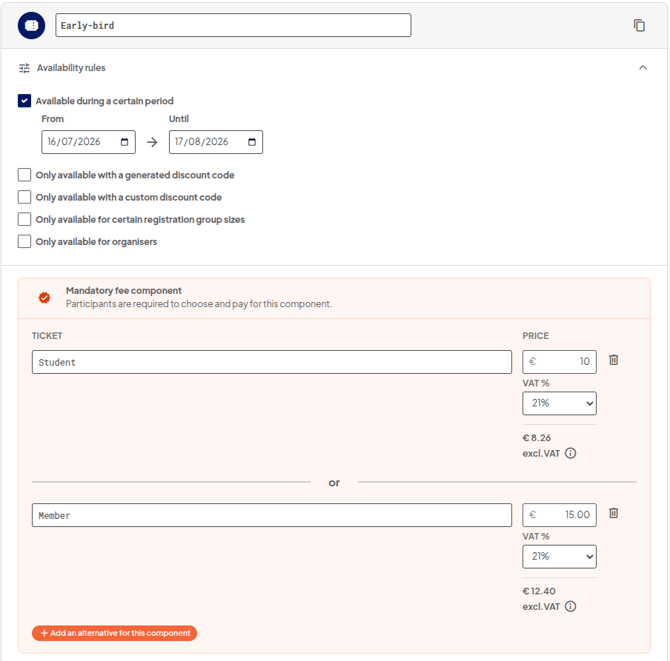
In this example, the Early Bird price for a student is €10 and is valid from 16th of July 2026 until 17th of August 2026.
- Go to Event website > Ticket configuration.
- Create a new ticket and give it a name, for example Early Bird.
- Add the required price components, such as Student and Regular.
- Under Availability rules, enable Available during a certain period.
- Set the start and end date for the Early Bird period.
Create Regular and Late Fee scenarios
Once you have finished configuring the Early Bird scenario, create the next pricing phase by copying the scenario.
- Click the copy icon next to the ticket.
- Rename the copied scenario, for example Regular or Late Fee.
- Only adjust the prices and the availability period.
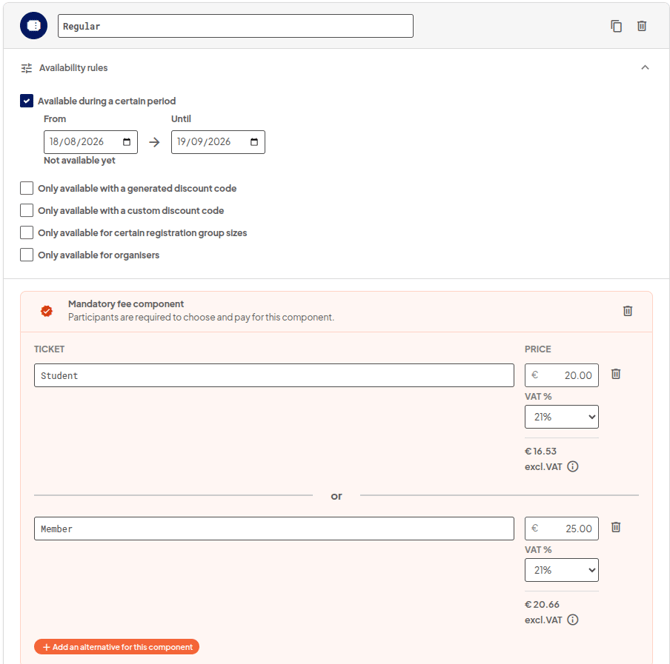
- Make sure the availability periods connect without any gaps. For example, if the Early Bird period ends on 17th of August 2026, the Regular period should start on 18th of August 2026.
Copying the scenario ensures that all price component names remain exactly the same. This allows aanmelder.nl to automatically display the correct price when a new pricing period starts.

The regular tickets will look like this:
Finally, link the correct ticket to the appropriate answer in your registration form.
For more information, see the article Link tickets to the registration form.
Tip: Use exactly the same names for the price components in every pricing scenario. Pay close attention to capital letters and spaces. Only then will the ticket price change automatically when a new pricing period starts.
Tip: aanmelder.nl uses the Central European Time (CET) time zone.
Tip: If you do not enter an end date, the ticket will remain available until you close registration. After a pricing period has ended, it is a good idea to check that the correct tickets are displayed in your registration form.