
Step 1:
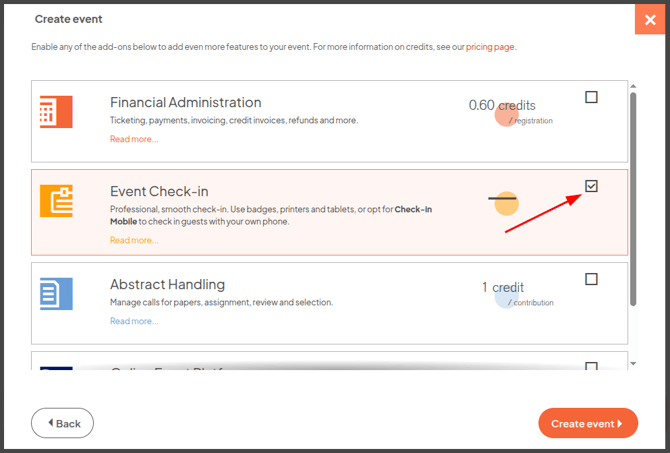
Create your event and make sure the Event Check-in add-on is selected. If you already have an existing event, go to 'Settings' in the left-hand menu and activate the Event Check-in add-on there.
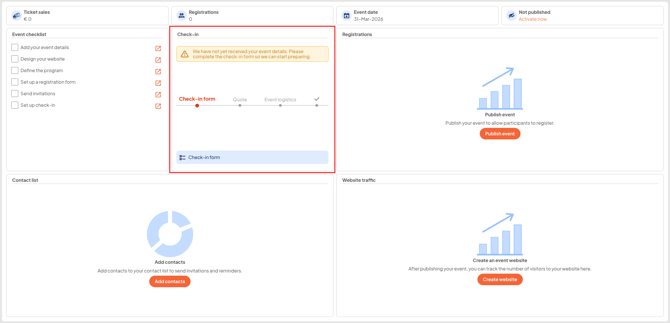
After activating the add-on, your dashboard will look as follows:
Step 2:
To further configure your Check-in, click 'Check-in form' in the Check-in section of the dashboard, as highlighted in red above. Then select a check-in method: Check-in Mobile or Event Check-in with badges.
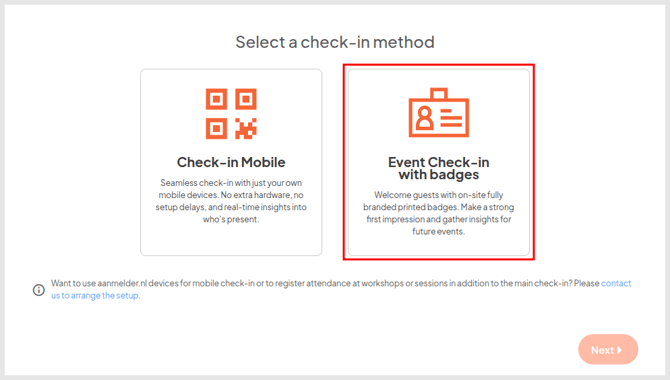
If you want to use Check-in Mobile, you are finished with the Event Check-in form. If you want to use Event Check-in with badges, you will need to provide additional event information in the following questions after clicking the 'Next' button.
Step 3:
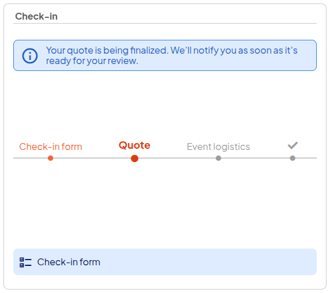
Our Sales team will start preparing a quotation. Once it has been created, your quotation will be visible under the Check-in section of the dashboard.
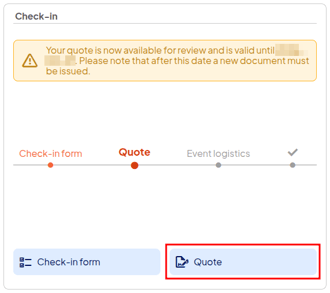
Step 4:
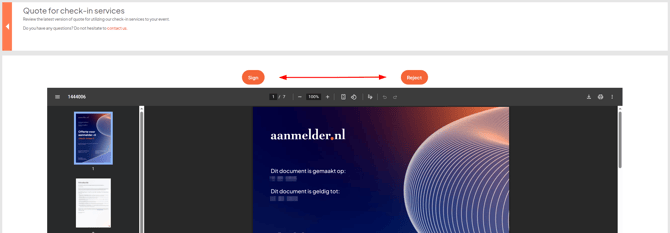
Sign the quotation if you agree. If changes are required, you can click 'Reject' and leave a comment for Sales so we can make the necessary adjustments.
Step 5:
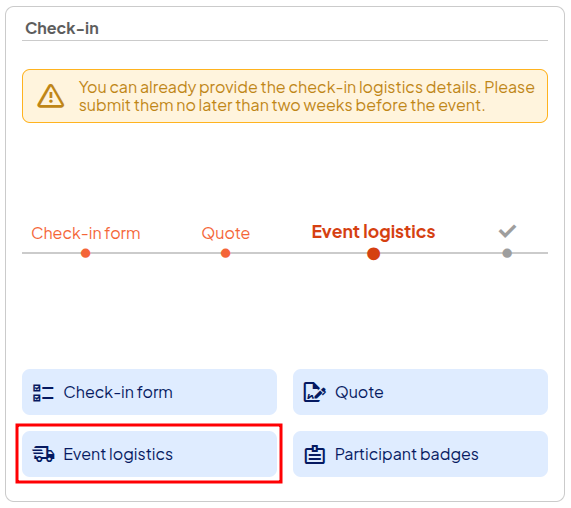
Please provide the required event logistics via the form, preferably at least two weeks in advance. Once we receive this information, we will start creating your badge and will contact you when the first version is ready.
Step 6:
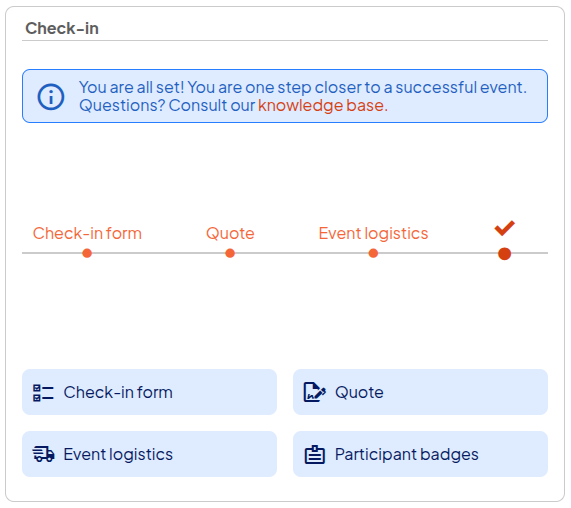
Once the badge has been approved, your Event Check-in is fully set up. We will send the final information by email shortly before the event.
Questions?
Do you have any further questions, or is something not working right away? Please feel free to contact us at eventconsultant@aanmelder.nl. We are happy to help.