
Open the Document builder
-
Go to Dashboard > Manage registrations > Document builder.
-
Click New document.
-
Give the document a name.
Set the document format
Before you start designing, first choose the correct format.
-
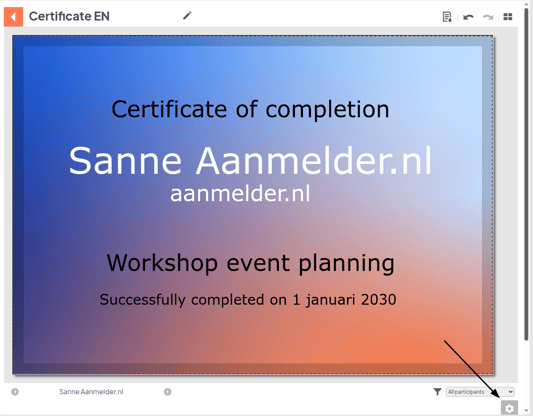
Open the document in the Document builder.
-
Click the gear icon in the bottom-right corner.
-
Choose a standard format or enter a custom size.
-
Select the preferred orientation (portrait or landscape).
Tip: Set the format before adding elements to prevent the layout from shifting.
Design your document
Add elements
In the Document builder, you can add different elements:
-
Variables: automatic participant data, such as name or company
-
Images
-
Shapes
- Click the plus icon in the right sidebar.
-
Place the element in the desired position in the document.
-
Adjust the content and styling.
Add data from the registration form
You can easily display data from the registration form in your document. The selected data will automatically be filled in for each participant.
-
Add a single-line text field or a multi-line text field.
-
Single-line text: for short texts
-
Multi-line text: for longer texts
-
-
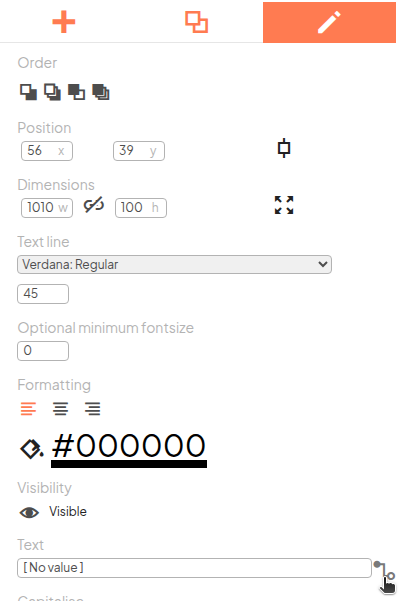
Click the text box to edit it.
-
Go to Text and click the icon on the right side of the input field.
-
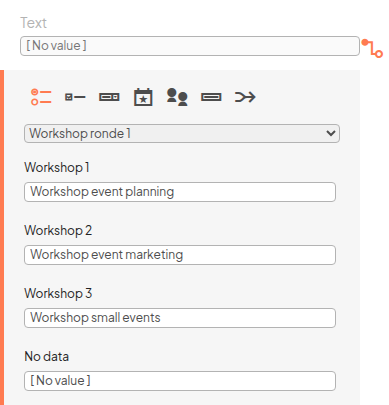
Choose the question type from the registration form.
-
Select the desired question.
Manage layers
Under Layers, you can see all elements placed on your document.

- Rename, select, edit, or delete elements
- Decide which elements appear in the foreground or background
Preview your document
While designing, you can check how the document looks:
- View all documents: click the four-square icon in the top-right corner

- Download preview: click the document icon

Share the document with participants
Is your document ready? You can share it with participants through a message.
Read the related article: Send a document to participants