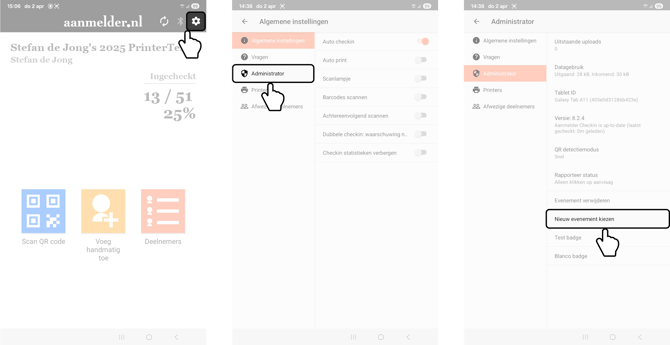
Note that the screenshots in this guide are in Dutch, however, the app looks the same in English.
Contents:
To quickly find the right explanation, click on the topic you need:
-
Participant
Starting the Event Check-in app
-
Start by turning on the tablet by pressing and holding the power button on the right side until the tablet starts up.
-
Wait untill the screen in the first image appears.
-
Next, swipe up to go to the home screen. There, you can open the Event Check-in app by tapping the icon or the text, as shown in the second image.
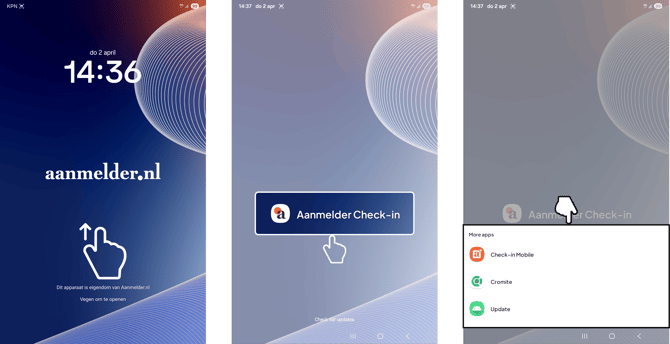
If you need an internet browser or the Check-in Mobile app, press and hold the icon or text to bring up the screen shown in the third image.
Event configuratie inladen
-
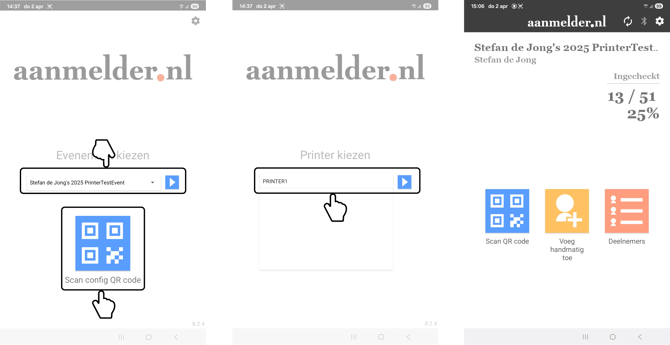
Once the app has opened, you can use an already loaded event configuration or scan a new one, as shown in the first image.
-
Next, in the second image, select which printer you want to connect to.
-
After that, you will arrive at the app’s main screen, as shown in the third image.
Connecting to a printer
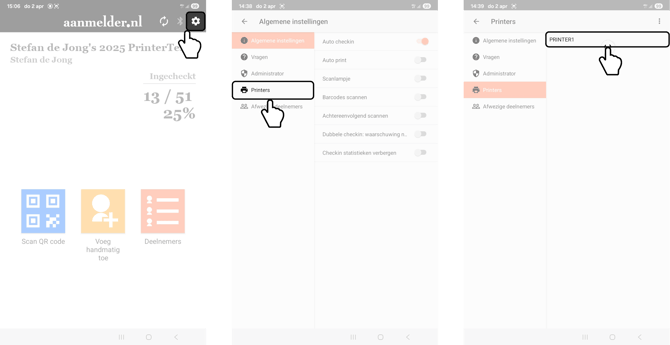
- To connect to a printer, go to the app settings by tapping the gear icon in the first image.
- Then go to the “Printers” tab, as shown in the second image.
- Here, you can select a printer to connect to, as shown in the third image.
Printing a test badge
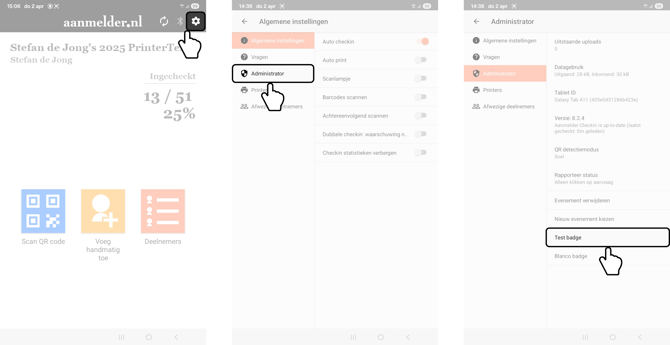
- To print a test badge, go to the app settings by tapping the gear icon in the first image.
- Then go to the “Administrator” tab, as shown in the second image.
- Press on “Test badge”, as shown in the third image. This prints a random participant, but does not check this participant in.
Scanning a participant
-
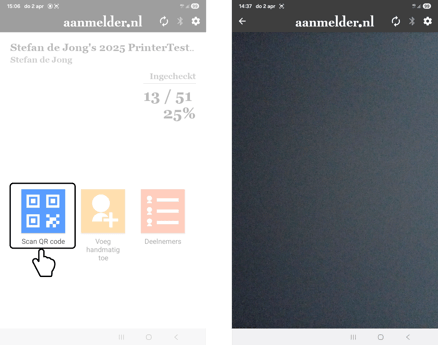
To scan a participant’s QR code, click “Scan QR code” in the first image.
-
A camera screen will then appear, allowing you to scan the participant’s QR code.
-
Once this is successful, a small pop-up will appear confirming that the participant has been checked in, and their badge will be printed automatically.
-
After that, tap the center of the screen to scan another participant’s QR code.
Adding a participant
-
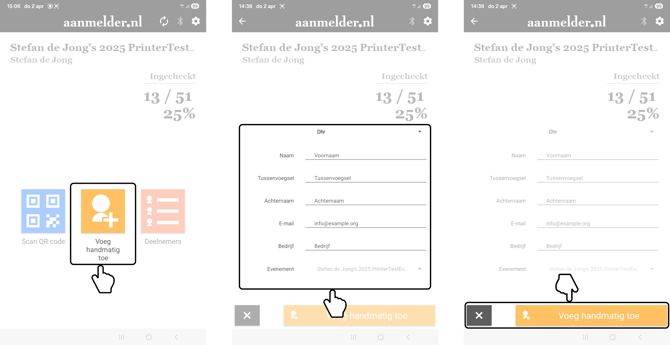
To add a participant manually, click “Add manually” in the first image.
-
After that, you can enter the participant’s details, as shown in the second image.
-
Once these have been filled in, click “Add manually” in the third image. This will check in the participant and automatically print their badge.
Searching a participant
-
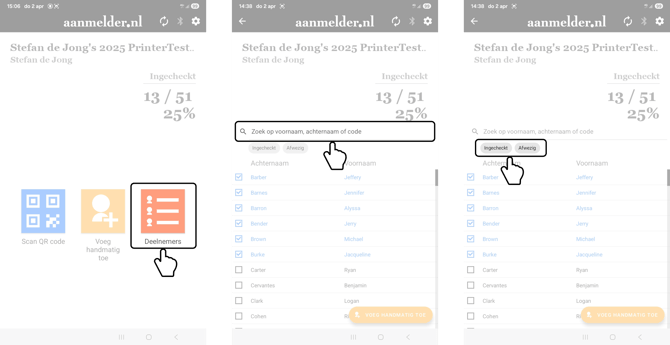
To search for a participant, click “Participants” in the first image.
-
After that, you can search for a participant by name, as shown in the second image.
-
You can also filter by “Checked in” or “Absent” as shown in the third image.
Changing a participant
-
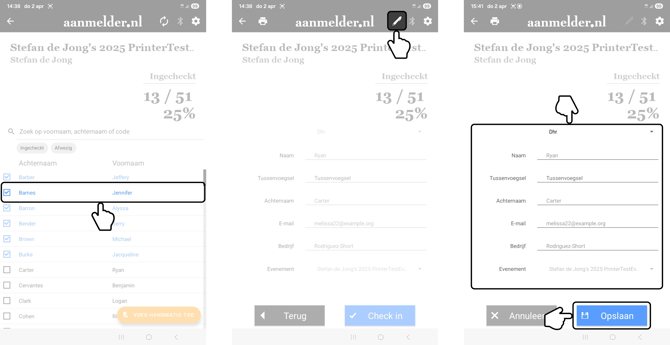
To edit a participant’s details, click on the participant, as shown in the first image.
-
Then click the pencil icon in the second image.
-
After that, in the third image, you can edit the details and save the participant again.
Printing a participant
-
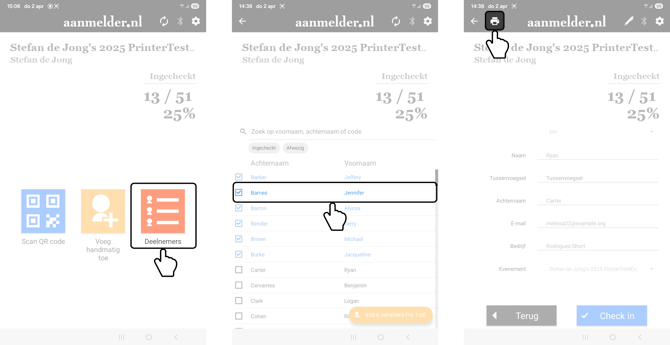
To (re)print a participant’s badge, click “Participants” in the first image.
-
After that, you can search for a participant by name and click on their name, as shown in the second image.
-
Then click the print icon in the third image to (re)print the participant’s badge.
Refresh the participants
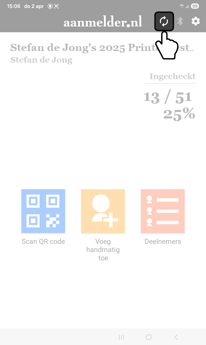
- To refresh the participant list, click the sync icon in the first image.
Printing empty badges
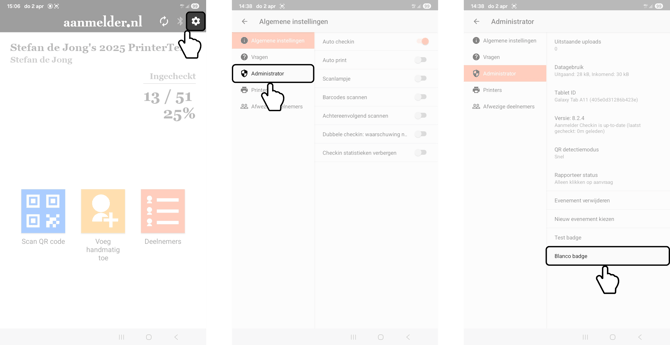
- To print empty badges, go to the app settings by tapping the gear icon in the first image.
- Then go to the “Administrator” tab, as shown in the second image.
- Click “Empty badge” here, as shown in the third image. After that, you can specify how many you want to print and confirm your choice.
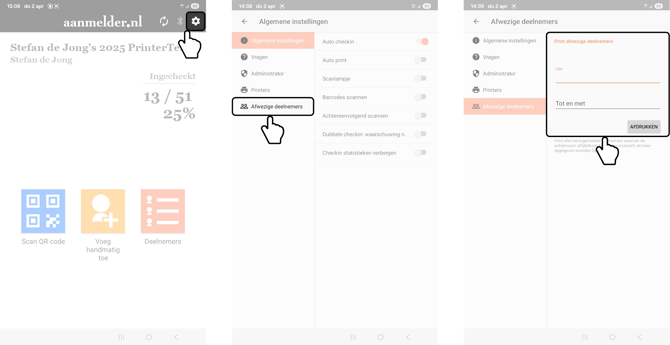
Printing absent participants
- To print the badges of the absent participants, go to the app settings by tapping the gear icon in the first image.
- Then go to the "Absent participants” tab, as shown in the second image.
- Fill in the two fields here, as shown in the third image. In these you can specify from and to which letter you want to print participants. Please note: to print all absent participants, fill 'aa' till 'zz'.
Delete event data
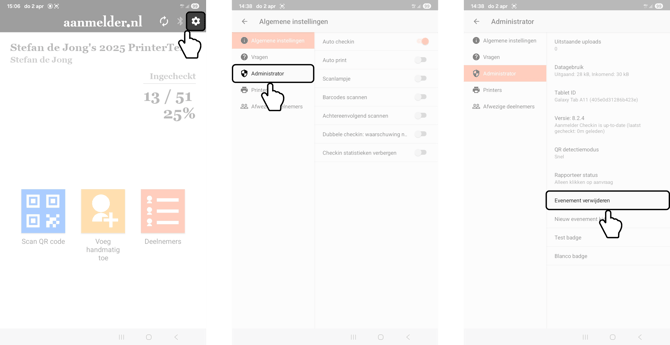
- To remove the event data from the tablet, go to the app settings by tapping the gear icon in the first image.
- Then go to the “Administrator” tab, as shown in the second image.
- Click “Remove event” here, as shown in the third image. This removes all event data from the tabet.
Load a new event
- To load a new event, go to the app settings by tapping the gear icon in the first image.
- Then go to the “Administrator” tab, as shown in the second image.
- Click “Load new event” here, as shown in the third image. This removes all event data from the tabet.